

Inviting additional teachers to my class
How to invite more teachers to your class via an invite code in class management — for team teaching, for example.
Owing to different staffing situations and varying didactic and pedagogical approaches, classes are now sometimes looked after by several teachers — for example in team teaching or in parallel-run lessons.
Against that backdrop, it’s essential that learning programs support multi-teacher assignments. In particular, several teachers should be able to access class analytics, learning-status overviews and administrative functions. The following shows how you can invite additional teachers to your class.
The whole process as an explainer video (in German): Add a teacher to a class
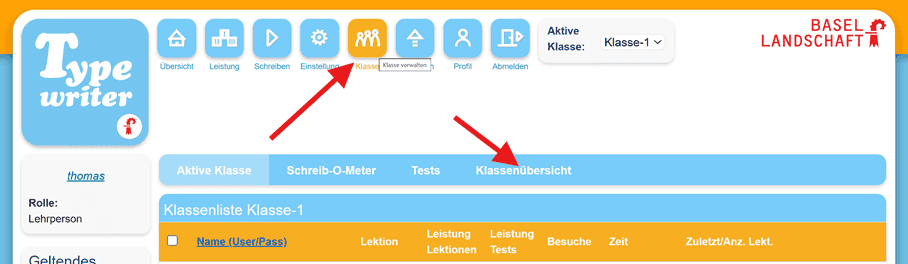
After signing in, click on “Class management” and then on the submenu “Class overview”.
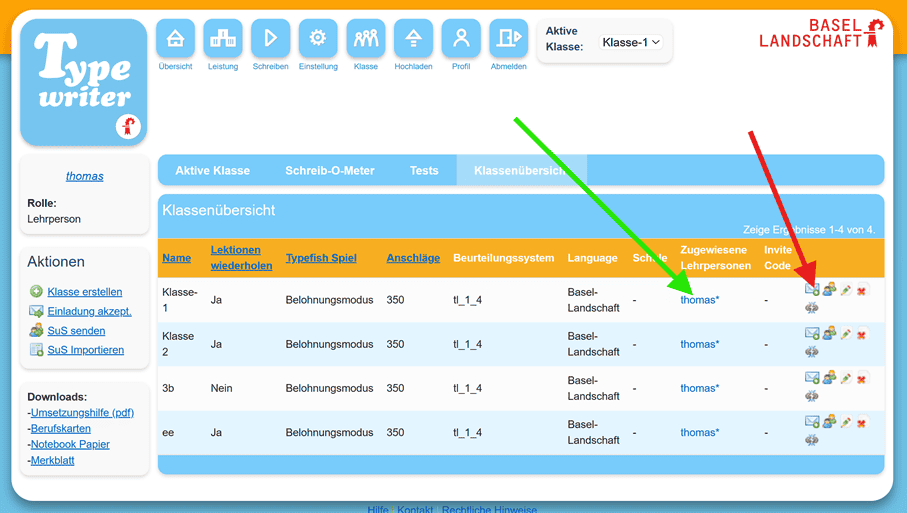
There you see your classes and the assigned teachers. By default, you are assigned to your own class. To invite another teacher to your class, click the “Create invitation” icon.
This gives you an invite code that you can copy to the clipboard by clicking it.
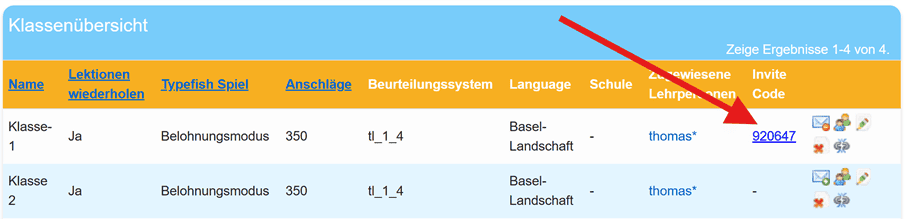
Send this code to the teacher you want to invite. You can invite multiple teachers with the same code.
The teacher to be invited signs in as a teacher and also goes to “Class” → “Class overview”. On the left, under actions, the item “Accept invitation” appears.
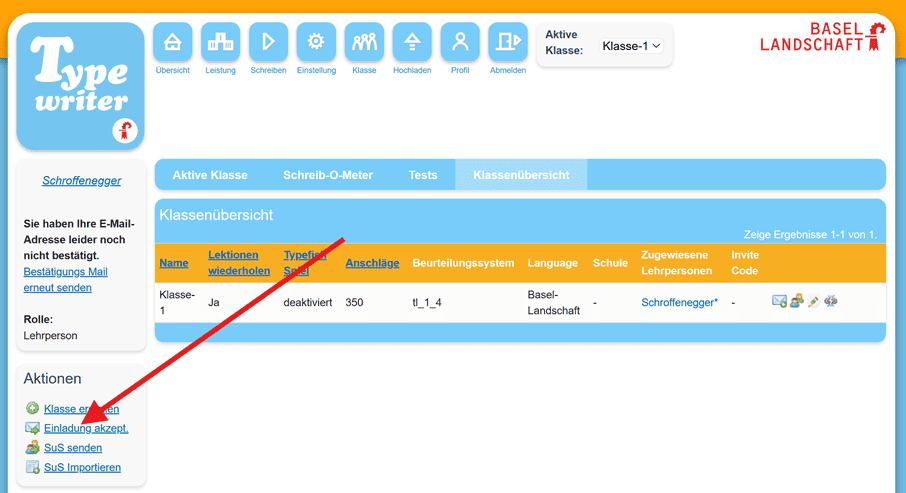
Then enter the code you received and click “Join class”.
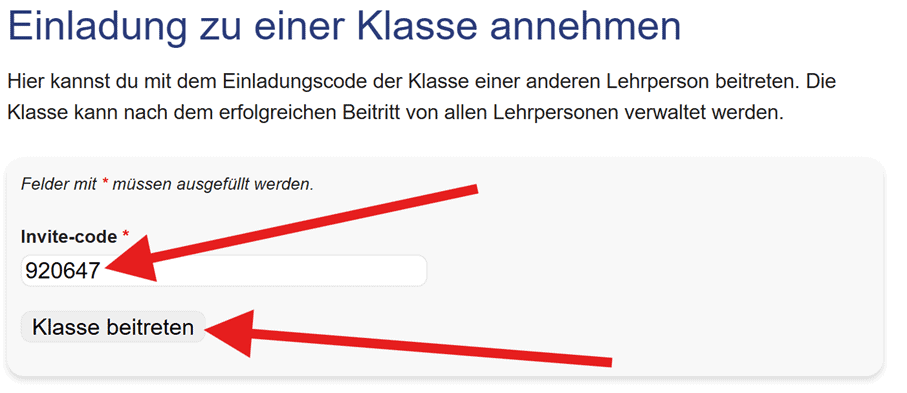
You now also see your guest class in your class list and can open and manage it accordingly.
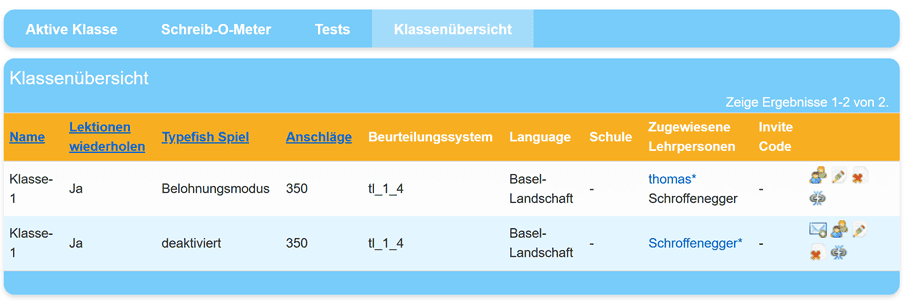
As a guest teacher you cannot send invitations into a class — that is reserved for the teacher who originally created the class.
As soon as the guest teacher has accepted the invitation, they also appear in the class overview of the inviting teacher.
The inviting teacher can deactivate the invite code at any time. Likewise the guest teachers can be removed if needed.
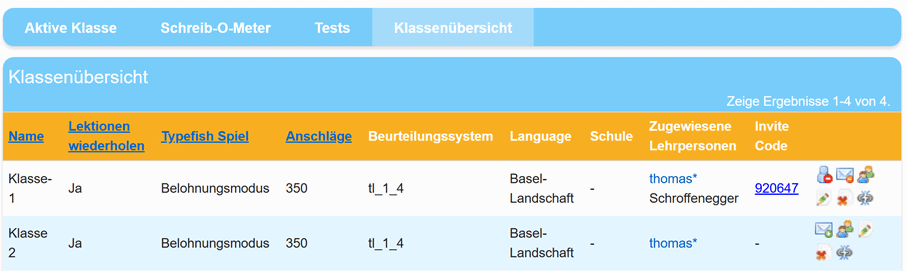
Once you have deactivated the invite code, you can create a new invite code at any time.

Good luck with your team teaching!