Running the 10-minute dictation as a test
From the Plus version onwards, 10-minute dictations can be run as scored tests — with didactic notes and automatic marking.
In addition to the simple test, Typewriter (from the Plus version onwards) now also offers the option to run 10-minute dictations that are scored as tests.
Didactic considerations for the 10-minute dictation
Typewriter can be used in different didactic scenarios and across all age groups. In early teaching it makes sense to work slowly and ensure that automation develops properly. During this period we strongly advise against using the 10-minute dictation as a test! Simple, short tests with the normal test feature, without particular time pressure, are sufficient there.
In secondary education, particularly Sek 2 and vocational education, a key goal is to increase typing speed. Here corresponding performance assessments are needed, typically in the form of 10-minute dictation tests.
How dictation texts are designed and which options are used for the 10-minute dictation are decisive for its didactic value. Before a test we recommend a practice phase under the same conditions as the test itself. Practice tests, made available to learners in the desired number, work best.
In most cases it makes sense within a given school stage to use either only the simple test or only the 10-minute dictation.
Implementation in Typewriter
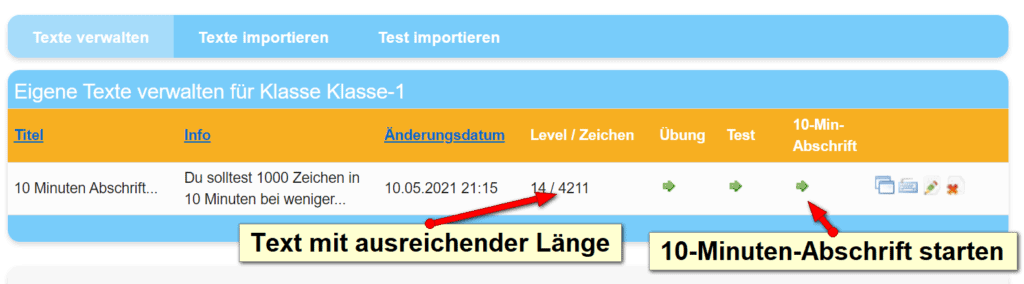
The 10-minute dictation can be administered under the “Upload” menu item and works similarly to simple tests and exercises. You can either import a text/test (recommended) or upload your own texts. With a time limit of, say, 10 minutes, there should always be considerably more text than learners can write in that time.
Once the 10-minute dictation is enabled, a window appears for selecting important options with the following defaults:
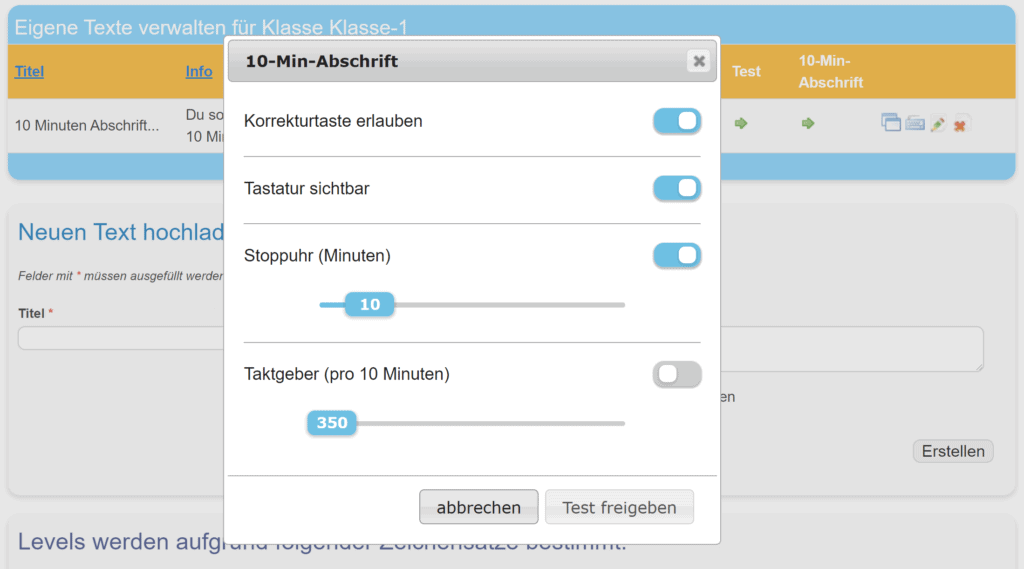
Allow correction key (default: on)
When first learning touch typing, the correction key (Backspace) is an obstacle for several reasons (see the manual). Before reaching lesson 100 it should not be used. Once learners have mastered the whole keyboard blindly so well that improving typing speed is the next goal — and the Backspace key is reachable from the home position — this option can be applied. For 10-minute dictations in secondary school the correction key is usually allowed, since the practical use case is being simulated there.
Keyboard visible (default: on)
This lets the on-screen keyboard be shown or hidden while typing. To hide the keyboard during practice, learners can simply push the lower edge of the browser up until it’s no longer visible.
Stopwatch (default: on, 10 minutes)
This sets the maximum time for the dictation. Usually 10 minutes. After this time the test ends automatically, the results are submitted and corrected by the system.
Metronome (default: off)
In 10-minute dictations many learners write too fast and therefore make unnecessarily many mistakes. Since the common formulas for performance assessment mainly consider the error percentage, text lengths above the minimum requirement and the additional mistakes they cause have an unfavourable effect on the grade. A metronome, set to roughly 5–10 % faster than the required typing speed, can help. Depending on equipment the clicking can be disturbing in class. Sometimes it helps to enable the speakers on only one PC.
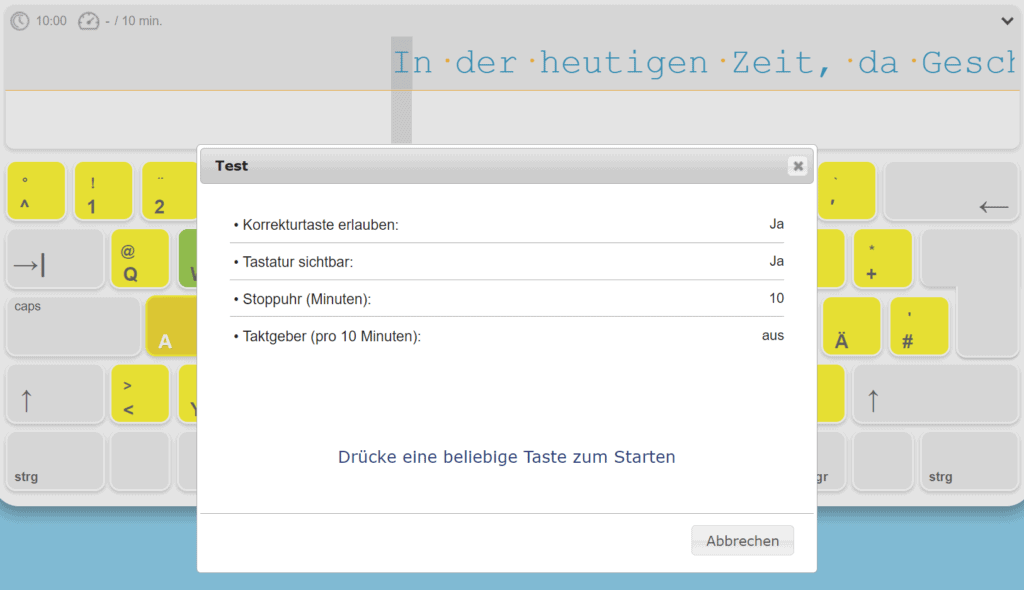
Once the desired options have been set, the test can be released; it’s then available on the learner’s home page. In that view it doesn’t differ from a simple test. Like the simple test, the 10-minute dictation can only be completed once; afterwards it is no longer visible on the learner’s home page. After starting, the learners see the test settings and the test can be started by pressing any key.
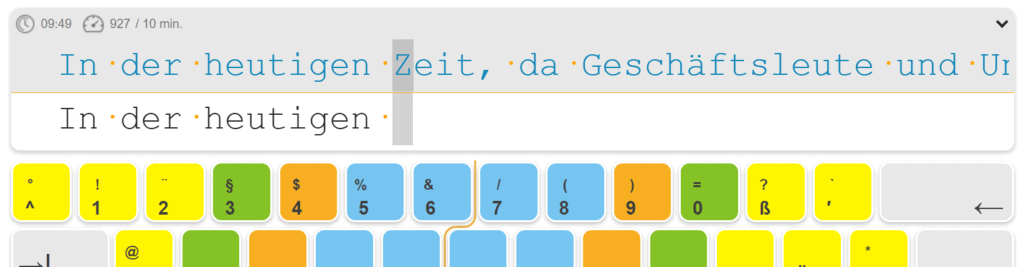
While typing only the source text and the text typed so far are shown. Above, the remaining time (if the stopwatch is active) is shown in minutes and seconds, plus the typing speed in characters per 10 minutes. This lets learners pace themselves and judge their tempo.
If the Backspace key is active, any number of characters typed so far can be deleted at any time and then retyped or corrected. Otherwise no navigation within the text is possible.
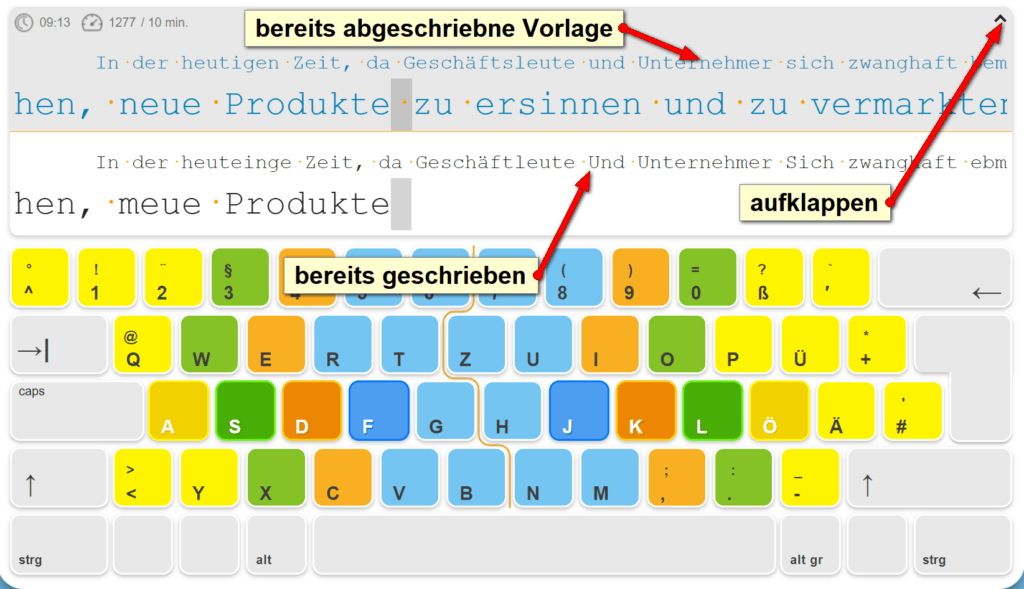
In the standard view only the currently edited text section is shown. By clicking the arrow icon (top right) the entire source text so far and the corresponding dictation can be unfolded and inspected.
Evaluation
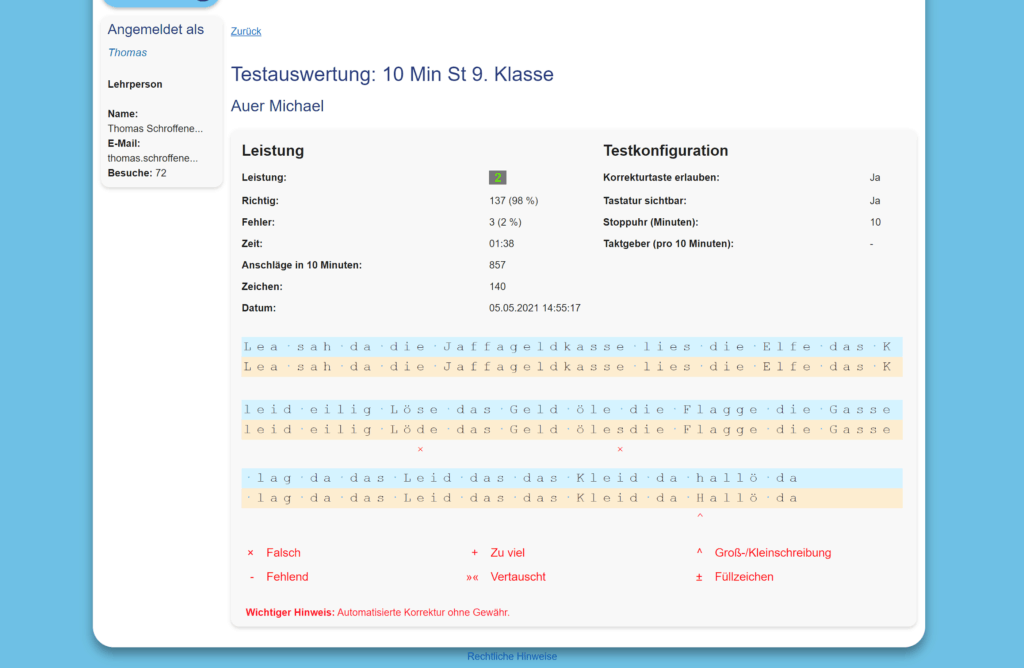
As with simple tests, the analysis for all learners with all marked errors can be found under Class → Tests. From there the fully marked test can also be printed for the whole class via the PDF icon.
While typing, learners can press the “Abort” button (top left) at any time or simply leave the page if unexpected interruptions occur. The test start is saved and the number of test attempts appears in the analysis as information for the teacher. Learners can then restart the test on their own until they’ve completed it once. This minimises administrative effort for the teacher because the test doesn’t have to be re-enabled.
Error types and weighting
| Symbol | Type | Affected characters | Error counter |
|---|---|---|---|
| x | Wrong | 1 | 1 per character / space |
| + | Extra | 1 | 1 per character / space |
| ^ | Case | 1 | 1 per character |
| - | Missing | any | 1 per missing character string |
| »« | Swapped | 2 | 1 in total |
| ± | Filler character | – | No error mark |
Automatic marking
Since arbitrary errors can occur one after another in this mode, errors arise that can be interpreted differently from a content perspective. The automatic marking function provides only one interpretation. For that reason we recommend a check by learners or teachers as a safety net even with automatic marking. Read more about test evaluation in our manual.