

Guide: student licensing in the Canton of Thurgau
Step-by-step guide to registration, uploading licence codes and renewing licences for students in the Canton of Thurgau.
Video guide on licensing (in German): 2026 Licence management guide Thurgau
Step-by-step
In the licence letter you receive by email after ordering you’ll find the code word for teachers and the licence codes for students.
If you don’t yet have a teacher account, you can now register with the code; otherwise skip this step and use your existing account.
Register as a teacher
To register, go to tg.typewriter.ch and click the “Register now” button.
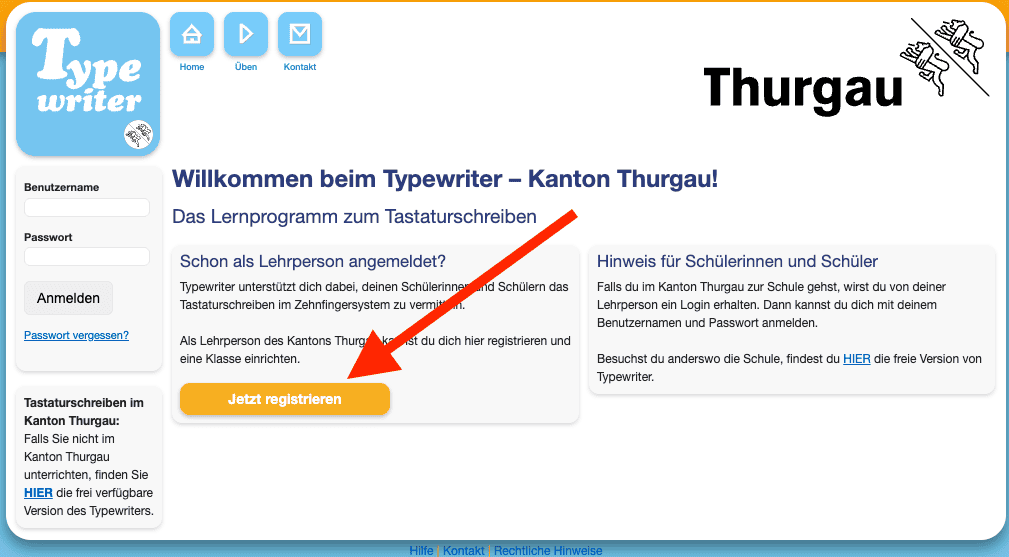
Enter the new code for the Canton of Thurgau that you received in the licence letter. Then fill in the registration form. Username = email address.
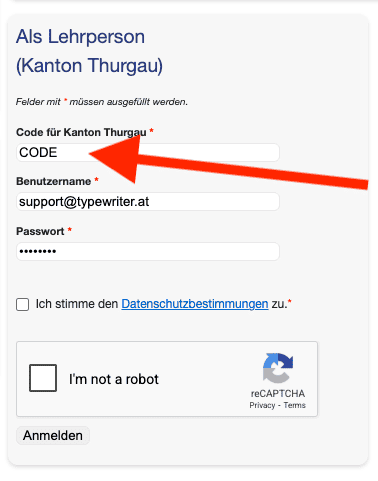
Confirm the privacy terms and the captcha and click “Sign up”.
Licensing the class
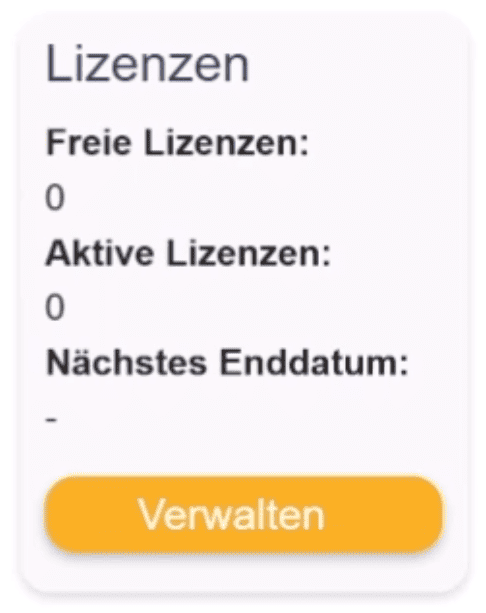
Now sign in to Typewriter as a teacher. After login you’ll see on the left, under your login data, that you currently have no free and no active licences.
Use the “Class” menu item to switch to your class list and click the “Licences” submenu.
There you can upload the licences from the licence letter. Up to 50 licences can be uploaded at once per upload. If you want to upload a larger number of licences, split the packages.
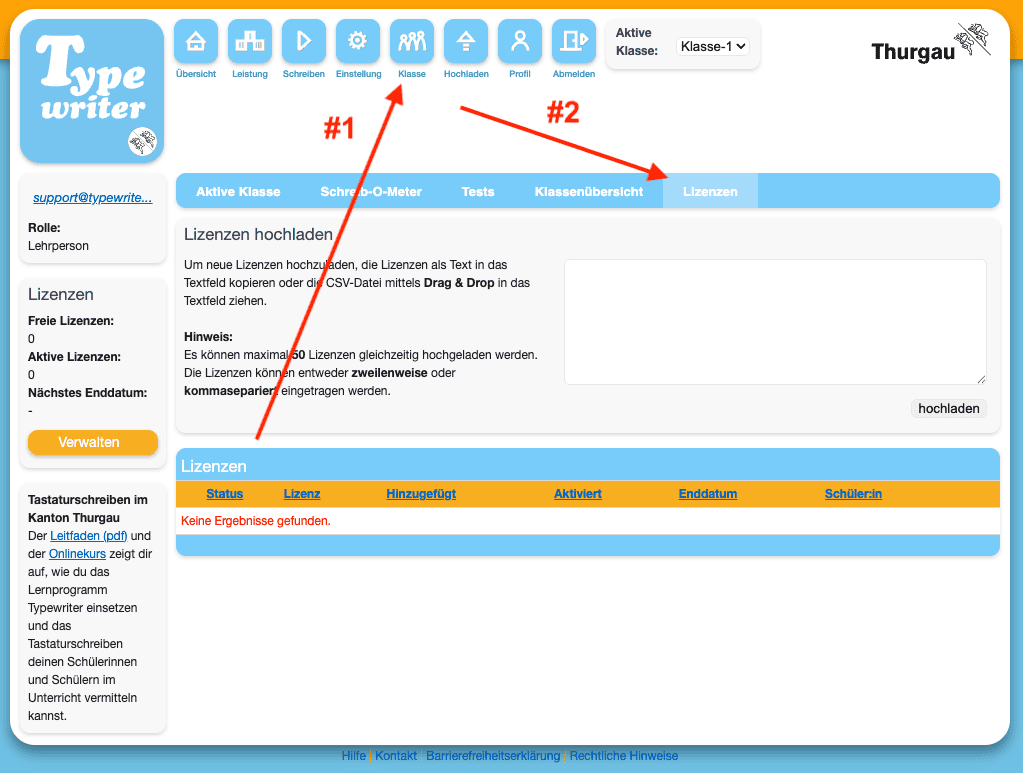
Now drag the file “typewriter_lizenzcodes.csv” from the licence email directly onto the text area in the browser. Alternatively you can open the file, copy the licences to the clipboard and paste them into the text area.
The entered licence codes are then imported. If an error appears, make sure every code is on its own line.
Finally you’ll see that all codes were accepted and are now available to assign to students.
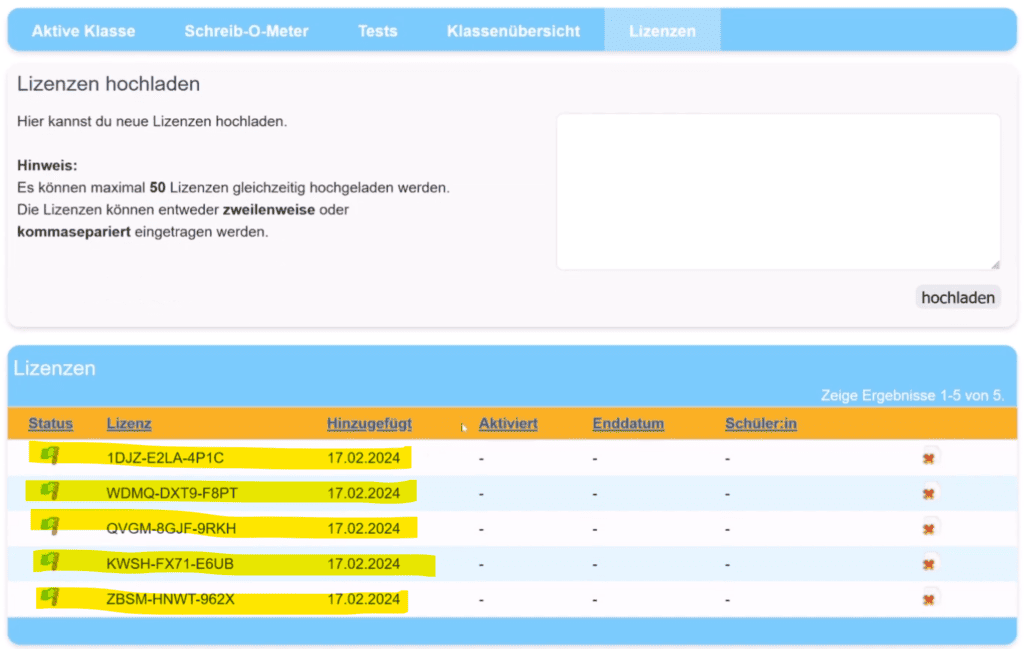
You can now create the learners in your class if needed, or — if they already exist — assign licences accordingly.
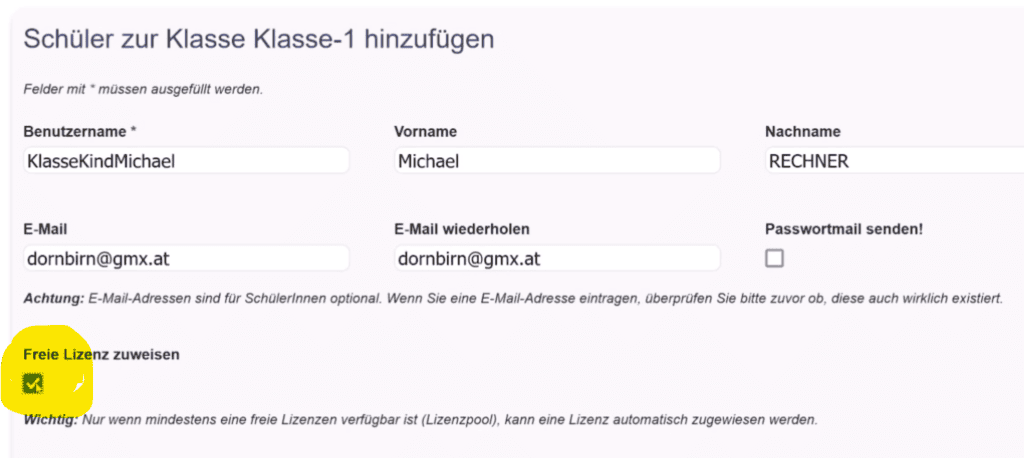
You can create new learners. To do so you need at least a username per student.
Please make sure to pseudonymise the names of your students before entering them into the program. You can keep an internal mapping list for your own overview. Entering an email address is not required for students. You can also upload whole classes via CSV upload. A detailed guide is available in the online course at https://www.typewriter.ch/kurs or on the website.
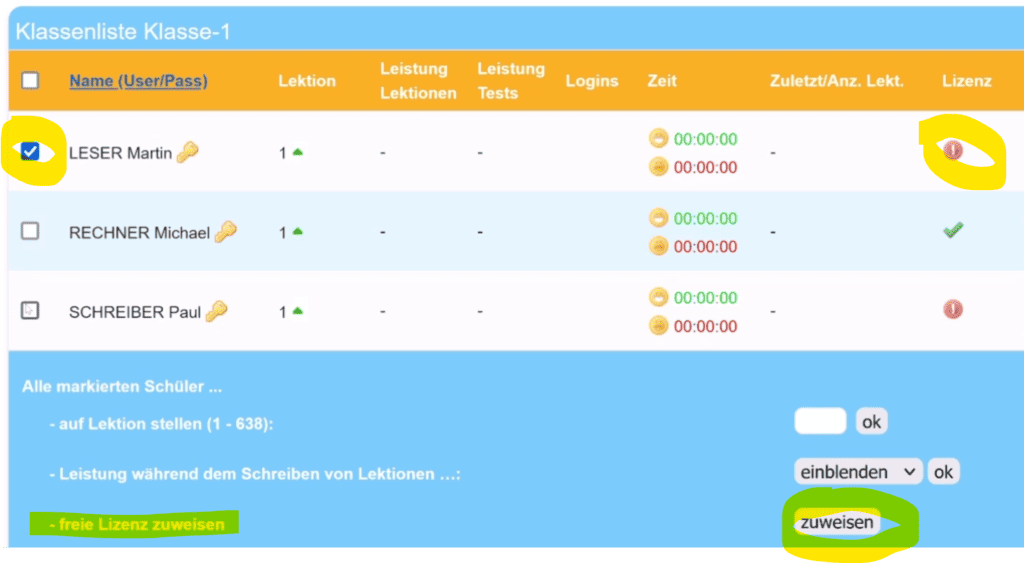
You can assign free licences directly when creating learners or do it later. If you have an existing class, the licence status is shown in the class list. In the example the licence is missing.
If you want to license a class or individual students of the class, you can do that directly in the class list. Select individual or multiple learners and at the end of the list pick “Assign free licence”.
Under the “Licences” menu item you now see the assigned licences and the status of each one. So that errors can be corrected, a licence is only considered consumed when learners sign in with it AND a lesson is started. Until then you can revoke the licence from a learner at any time and assign it to someone else.
If you uploaded a licence you don’t need, you can delete it at any time, as long as nobody has consumed it.
The licence can then also be uploaded under a different teacher. Make sure you still have the licence code in the licence email, or copy the code into a text document as a safeguard before removing it.
The display on the left always shows your licence status and when the next licence expires. The lifetime of licences is 14 months from activation by the learners.
Students themselves can also enter licence codes directly on their start page for their account. This way you can simply hand out licence codes to all learners and leave the licence management of your class to them.
Renewing expired or expiring licences
The renewal process is very simple and barely differs from the first licence allocation.
You can add newly purchased licences to your licence pool at any time.
When a learner’s licence is approaching its expiry date (6 weeks before expiry), a warning triangle in the class list signals this to the teacher. The teacher also always sees the next licence expiry date in the cockpit.
From 6 weeks before a licence expires a new licence can be assigned to learners. This works just like the first allocation. That way Typewriter use is uninterrupted. The new licence only starts counting from the date of the learner’s first typing activity after the existing licence expires.
When a licence has expired, this is shown to the teacher and the learners with a red exclamation mark. In the licence table (Class → Licences) all licences are shown, regardless of whether they have expired.
Video guide for licence renewal: Thurgau
Video guide (in German): Licence renewal video guide (MP4)
If you have further questions or problems, feel free to get in touch with our support at any time.
Your Typewriter team